In the scenario where you have configured a Linux computer for a colleague, family member or friend, and need to gain access to their desktop for the purpose of remote assistance: this tutorial covers how to setup the remote assistance session from an SSH session.
Assumptions
- You have an administrative account setup on the Linux machine
- You have the means to connect to the machine on port 22 (SSH) and have a working network address
- The users desktop is displayed on a single connected display
The Environment
With the rise in popularity of Linux Mint amongst Windows 11 escapees I will cover that Linux distribution version 22.2 ,however this procedure can easily be adapted for other Linux systems. I will be connecting to the remote system from macOS using the included Terminal and VNC viewer.
Getting Started
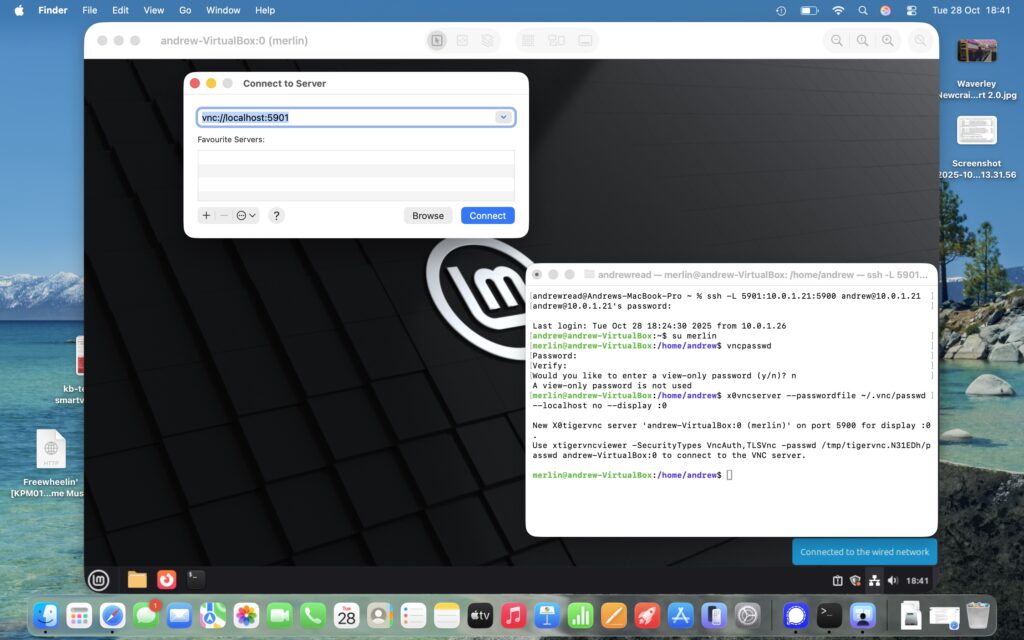
We first need to open the SSH connection with port forwarding avoiding the need to modify routers and firewalls. The following Terminal command will work for a system with a route to IP address: 10.0.1.21 avoiding potential conflicts with local VNC port 5900. I am assisting a user username: merlin in this example:
$ ssh -L 5901:10.0.1.21:5900 andrew@10.0.1.21Now we need to install the VNC server and enable a connection to the users desktop:
$ sudo apt install tigervnc-scraping-server
$ sudo su merlin
$ vncpasswd #then create a password when prompted and 'n' for the view only password prompt
$ x0vncserver --passwordfile ~/.vnc/passwd --localhost no --display :0
At this point on the Mac I can then click my desktop and from the menu bar “Go” > “Connect to Server…” . The address to connect will be vnc://localhost:5901 …and enter the set password and Merlin’s desktop appears interactively on my screen.
Tidying Up
You might choose keep the VNC connection credentials ready for the next time you have to assist. You probably don’t want to leave the VNC server listening and can kill this from your SSH session. The server also stops when the assisted user logs out.
To stop the server close the Screen Sharing window and from the terminal do:
$ pkill x0vncserverTo remove the VNC password you can do:
$ rm ~/.vnc/passwdYou can now logout from the users account, then logout your SSH session; remember that you used ‘su’ to login to the users account who required assistance.
If you want to remove the vnc software completely you can remove it with apt.