I encountered an error updating VirtualBox Guest Additions in Windows 8.1. In this case the VBoxWindowsAdditions installer failed at: VBoxDrvInst.exe .
Resolution
Every time VirtualBox is updated on the host the following procedure is required to install or upgrade VirtualBox Guest Additions:
Start by opening an Administrators Command Prompt: this can be achieved by clicking Start , then type ‘cmd’ then press return. The cmd prompt will not have administrative access so secondary click it on the task bar, then secondary click ‘Command Prompt’ in the menu then ‘Run as administrator’.
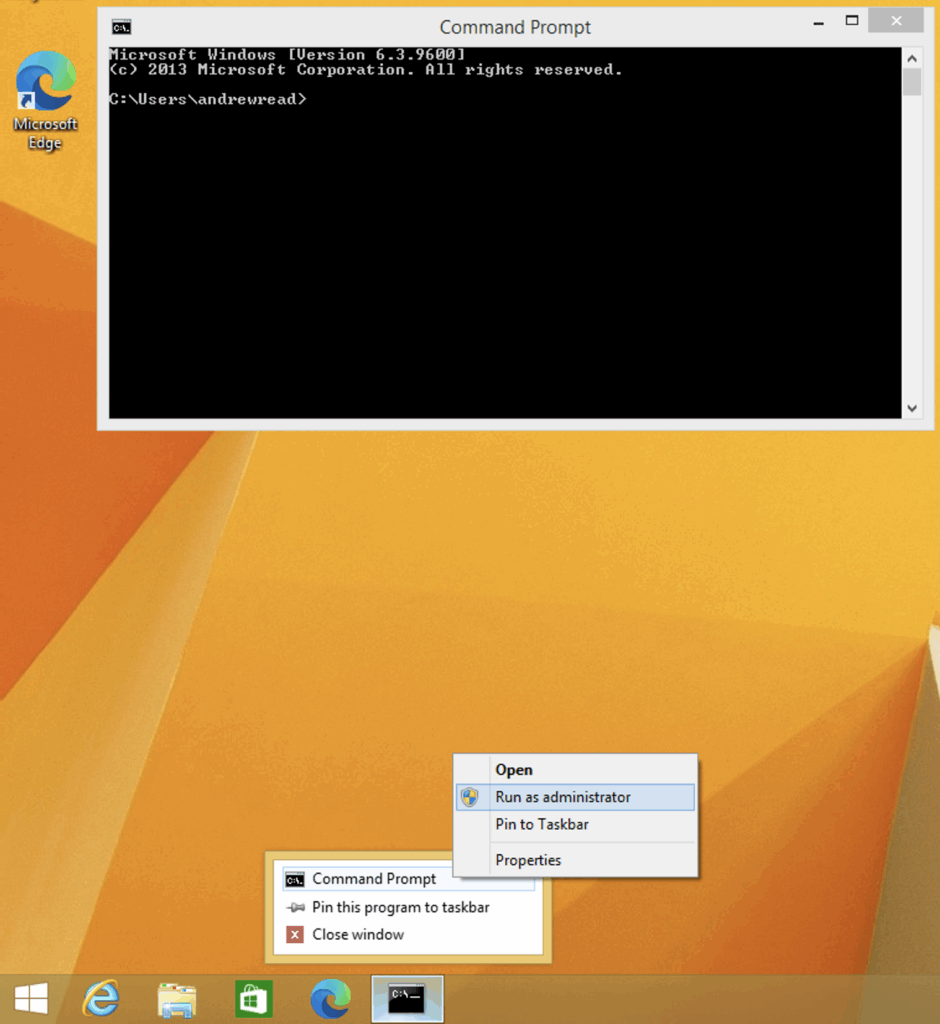
In the new window we will enable test signing with the command:
bcdedit /set testsigning onWith that done reboot and the update VirtualBox Guest Additions as normal. Once you are done to get rid of the Test Mode watermark at the bottom right of the screen: bring up an Administrator Command Prompt as previously described then enter:
bcdedit /set testsigning offReboot and you’re all done until the next VirtualBox update.